
In this post, we will be looking at how you can add attachments to your emails.
The Code
For this post we have reverted to using the “To” field when sending messages. The main changes occur in Section 3.
Public Function addingAttachments(strSQL As String, strEmailField As String, _
                                    strSubject As String, strMessage As String, _
                                    Optional strAttachmentPath As String = "") As Boolean
On Error GoTo ErrorHandler
    ''''''''''''''''''''''''''''''''''''''''''''''''''''''
    '''''''''''''''''''      1        ''''''''''''''''''''
    ''''''''''''''''''' Declarations '''''''''''''''''''''
    ''''''''''''''''''''''''''''''''''''''''''''''''''''''
    Dim olApp As Object
    Dim olMail As Outlook.MailItem
    Dim olRecipient As Outlook.Recipient
    Dim olAttachment As Outlook.Attachment
    Dim db As DAO.Database
    Dim rs As DAO.Recordset

    ' Create the Outlook session.
    ''''''''''''''''''''''''''''''''''''''''''''''''''''''''''
    'if outlook is open it will need to be run as administrator
    ''''''''''''''''''''''''''''''''''''''''''''''''''''''''''
    Set olApp = New Outlook.Application
    Set olMail = olApp.CreateItem(olMailItem)

    ' Create the message.
    Set olMail = olApp.CreateItem(olMailItem)

    ''''''''''''''''''''''''''''''''''''''''''''''''''''''
    '''''''''''''''''''      2        ''''''''''''''''''''
    ''''''''''''''''''' Recipients '''''''''''''''''''''''
    ''''''''''''''''''''''''''''''''''''''''''''''''''''''


    'open up a recordset and move through it
    Set db = CurrentDb
    Set rs = db.OpenRecordset(strSQL)

    With rs
        If Not .BOF And Not .EOF Then
            .MoveLast
            .MoveFirst

            While (Not .EOF)
                ' Add the To recipient(s) to the message.
                Set olRecipient = olMail.Recipients.Add(.Fields(strEmailField))
                olRecipient.Type = olTo
                .MoveNext
            Wend
        End If
    End With

    ''''''''''''''''''''''''''''''''''''''''''''''''''''''
    '''''''''''''''''''      3        ''''''''''''''''''''
    ''''''''''''''''''''' Message'''''''''''''''''''''''''
    ''''''''''''''''''''''''''''''''''''''''''''''''''''''

    With olMail
         ' Set the Subject, Body, and Importance of the message.
         .Subject = strSubject
         .Body = strMessage
         .Importance = olImportanceHigh  'High importance

         ' Add attachments to the message.
         If strAttachmentPath <> "" Then
             Set olAttachment = .Attachments.Add(strAttachmentPath)
         End If

         ' Resolve each Recipient's name.
         For Each olRecipient In .Recipients
             olRecipient.Resolve
         Next


        ''''''''''''''''''''''''''''''''''''''''''''''''''''''
        '''''''''''''''''''      4        ''''''''''''''''''''
        ''''''''''''''' Display, Save, Send'''''''''''''''''''
        ''''''''''''''''''''''''''''''''''''''''''''''''''''''

        .Display

      End With

addingAttachments = True

ExitFunction:
    Set olRecipient = Nothing
    Set olMail = Nothing
    Set olApp = Nothing
    Exit Function
ErrorHandler:
    addingAttachments = False
    Resume ExitFunction
End Function
End Function
The Explanation
Public Function addingAttachments(strSQL As String, strEmailField As String, _
                                    strSubject As String, strMessage As String, _
                                    Optional strAttachmentPath As String="") As Boolean
We have added an optional argument strAttachmentPath. It makes sense that this argument be optional as not all emails will have an attachment.
         ' Add attachments to the message.
         If strAttachmentPath<>"" Then
             Set olAttachment = .Attachments.Add(strAttachmentPath)
         End If
This is the code we use to add the attachment to the mail.
If strAttachmentPath<>"" Then
...
End if
We first check whether the optional argument strAttachmentPath has been passed. If it has, strAttachment<>”” will return true and the very next line will run.
Set olAttachment = .Attachments.Add(strAttachmentPath)
If strAttachmentPath has been passed as an argument, we need to add it to the email. we use olMail.Attachments.Add(strAttachmentPath) to achieve this.
Testing The Function
In order to test the function, you will need to have an attachment to attach (obviously) BUT know its full path and filetype. The full path of the attachment will usually include the C drive as its root folder.
We are attaching a document called DesignPatterns which is a PDF document and is located in a file called AccessTemp which itself is located directly inside the C drive.
Ergo, our file path will be:
C://AccessTemp/DesignPatterns.pdf
For testing purposes, it might be a good idea to try to replicate our C>AccessTemp folder structure exactly.
Note: Please pay attention to the fact that we have included the .pdf file type indicator.
The Form
Please pay attention to the fields.
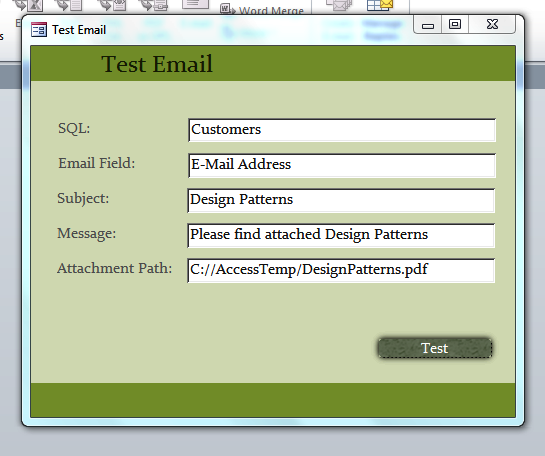
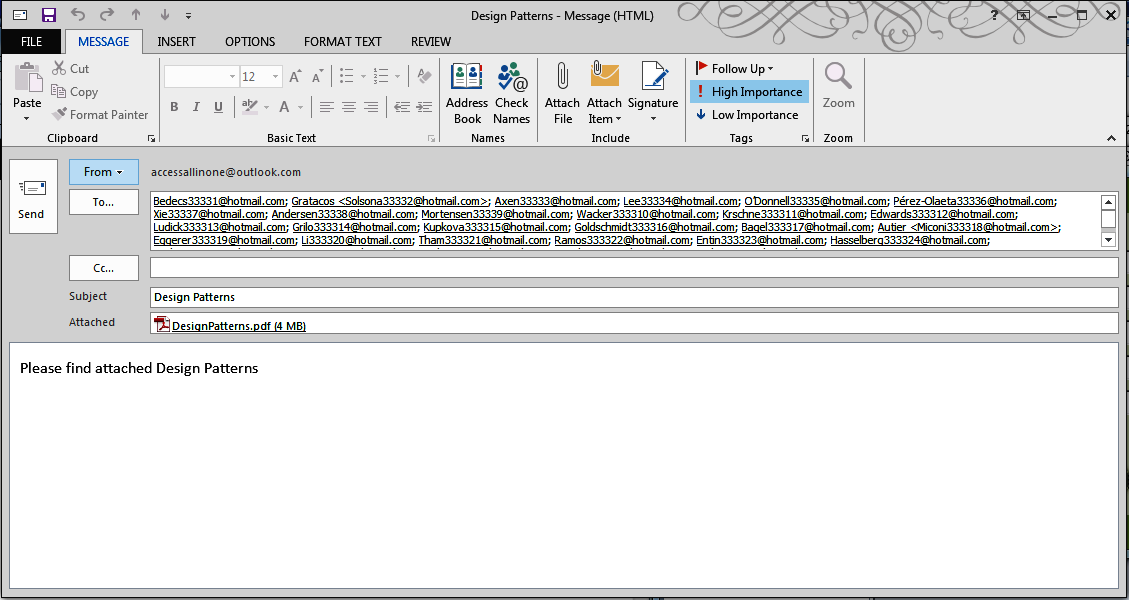
Clicking on the Test button will produce this result:
The Conclusion
Adding attachments to an email is a very important and useful feature to use when emailing.
In the next post, we will be showing you how to send emails without Outlook being visible.


